

eSign AnyWhere

The tool for digital transaction management

guestoo and eSign AnyWhere work hand in hand.
Your guests can easily register via guestoo and, after signing up for the event, will automatically receive a link to digitally sign a document of your choice.
The signature folder is created automatically in the background in eSign AnyWhere, and the document status is also automatically synced with guestoo.

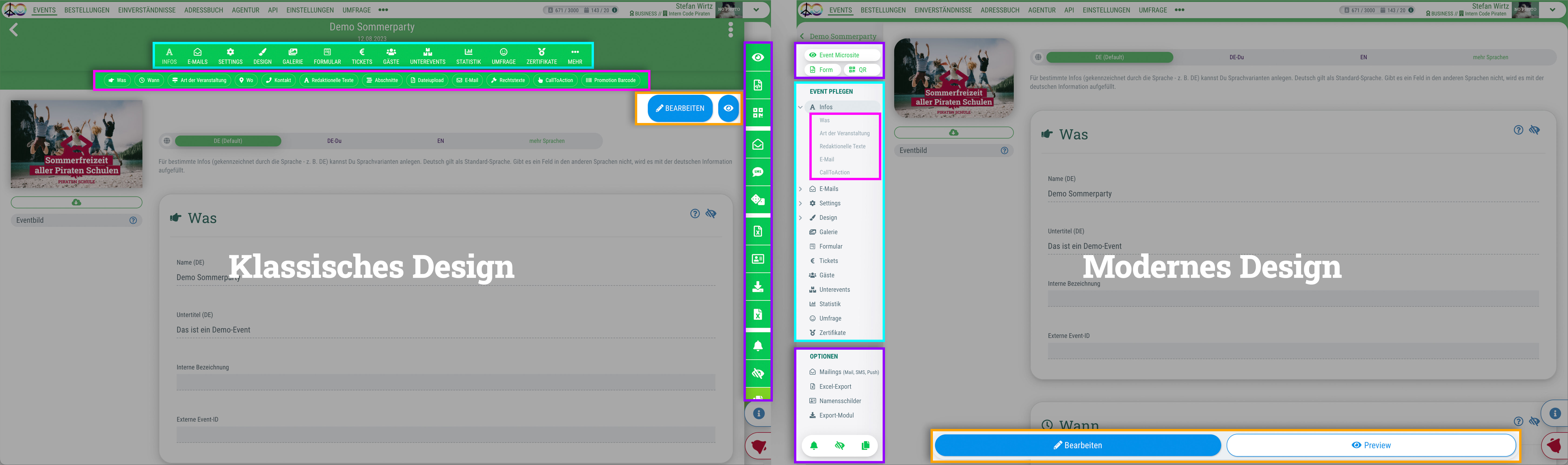
Du kannst für das guestoo Back-End zwischen zwei Darstellungsoptionen wählen. Die Screenshots in der Doku basieren auf dem "Klassischen Design".
Hier siehst Du die Unterschiede, damit Du dich auch im "Modernen Design" zurecht findest: » guestoo Back-End-Design

Digitalization without compromise

Flexible registration processes with integrated digital signature collection


With eSign AnyWhere, you have a handy tool at your disposal that makes it easy to send documents to your guests for them to fill out and sign. This allows you to have your guests sign contracts, forms, or photo release agreements quickly and digitally, saving you time on shipping as well as printing and paper costs.

You can design the registration process just as flexibly as you’re used to with guestoo: whether it’s a free or paid event, a digital or hybrid event, or an in-person event.

guestoo makes the registration process simple and convenient for both your guests and you.

The integration of the two systems allows your guests to register in guestoo and then be redirected to the eSign AnyWhere e-signature service with just one additional email.
Once the guest has followed the simple instructions to sign the document in eSign AnyWhere, a notification is sent directly to guestoo confirming that the document has been successfully signed, without the need for the guest or you, as the organizer, to go through the hassle of exchanging documents via email or mail.

All documents are stored, organized, in the guest’s record in eSign AnyWhere, where you have access to them at any time.


For more information about the eSign service, visit the eSign AnyWhere website (external link)
Setting up eSign AnyWhere


To connect eSign Anywhere to guestoo, follow these steps:

  • If you haven't already, create an account with eSign AnyWhere
  • Create a template in eSign Anywhere
    In order to do this, you need to upload the desired document and specify where the fields for filling out and signing are located
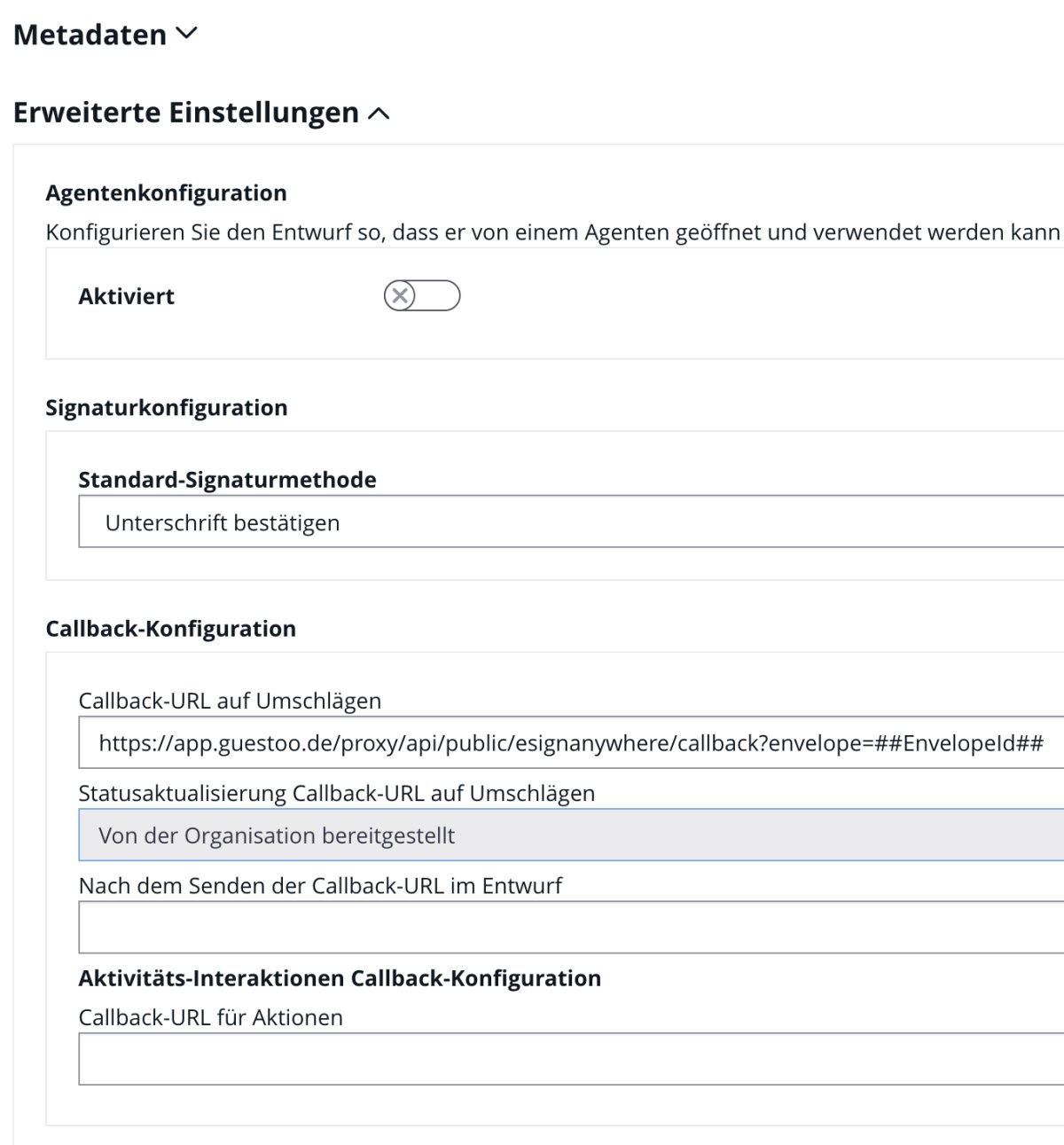
  • In the template, you also specify a callback URL:
    https://app.guestoo.de/proxy/api/public/esignanywhere/callback?envelope=##EnvelopeId##
    (If you're using a guestoo server license, you'll need to adjust the domain accordingly)
  • You should also disable email notifications, otherwise the guest will receive duplicate emails from both guestoo and eSign AnyWhere
  • After you have successfully created the template, copy the template ID of the template you just created

Setup in guesto

Here's what you need to take care of in guestoo

Unlock feature

If you would like to use guestoo in conjunction with eSign AnyWhere, please first send us a request at support@guestoo.de so that we can enable the necessary feature for you.

Once the feature has been enabled in guestoo, you must complete the following steps:

Agency settings

  • Go to the menu item "Agency" and switch to the "Settings" tab
  • Scroll to the section "Extensions"
  • Click on "Edit"
  • Activate the option "Activate eSign AnyWhere"
  • API-Key:
    Here, you enter the API key that you can find in eSign AnyWhere (this is used to link the two accounts)
  • Click on "Save"

Event

  • Go to the "Settings" tab of the desired event
  • Scroll to the section "Extensions"
  • Click on "Edit"
  • Template-ID:
    After you've created a template in eSign AnyWhere, you can copy the ID for that template from the application and paste it here
  • JSON:
    After configuring the fields of a template in eSign AnyWhere, you'll see a “DEV” button in the bottom-right corner of the application that allows you to download a JSON file. Open this file in a text editor, copy its contents, and paste them into guestoo.
  • Note: 
    • Only one ID can be saved per event. If your guests need to digitally sign multiple documents for an event, combine all the documents into a single PDF file and create it as a single template in eSign AnyWhere.
    • You can also use the same template ID for multiple events
  • Once you've entered all the information, click on “Save”

Procedure for the guest


This is what the integration of eSign AnyWhere looks like from the guest's perspective:

  • The guest signs up for the event using the registration form
  • If enabled, they will receive a DOI email that they must confirm by clicking the link
  • A guest record is then automatically created in the background in eSign AnyWhere, and a signature folder is generated for them
  • The guest receives an email from guestoo containing a link to sign the document in eSign Anywhere
  • After the guest has followed the instructions from eSign AnyWhere and successfully signed the document, guestoo receives confirmation that the process was successful
  • In the Guest Details section, under the “Registration” tab, there are now three event-specific fields (hidden from the guest) that you can use to filter the guest list:
    • eSign link
    • eSign status
      • Active
      • Canceled
      • Completed
      • Expired
      • Rejected
    • eSign document