Use your own email address as the sender

Use your own email address and name as the sender address for your agency emails, such as invitations, confirmations, etc. Here's how:

Rates & Prices

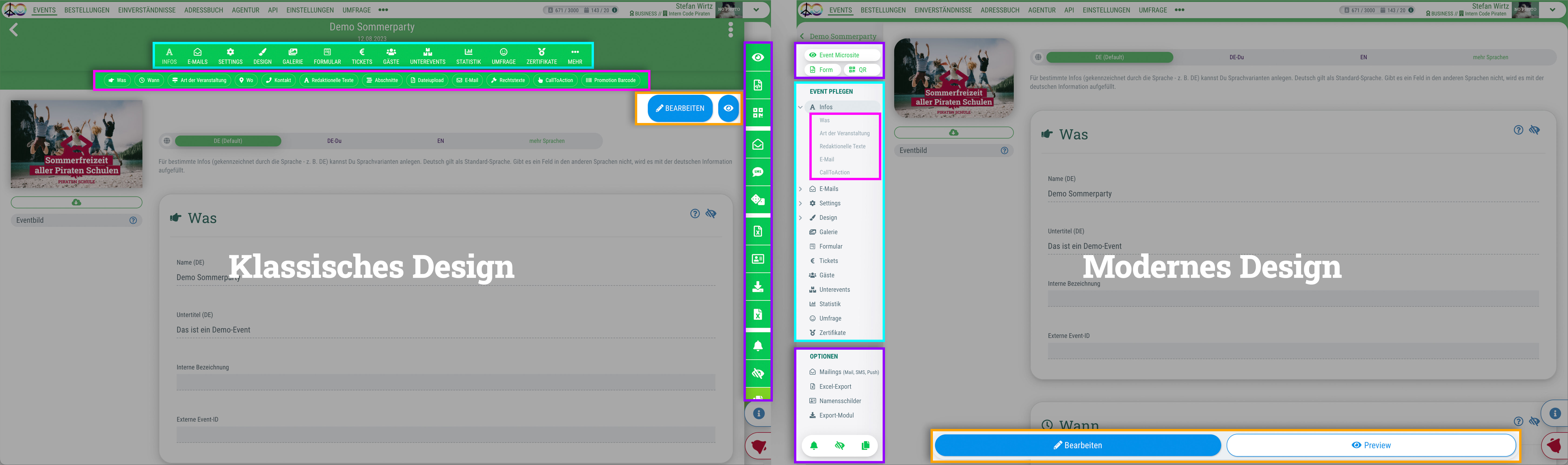
Du kannst für das guestoo Back-End zwischen zwei Darstellungsoptionen wählen. Die Screenshots in der Doku basieren auf dem "Klassischen Design".
Hier siehst Du die Unterschiede, damit Du dich auch im "Modernen Design" zurecht findest: » guestoo Back-End-Design

Your own email address as sender (additional option available at extra charge)

Using your own email address and sender name is an additional option that's available at an extra charge.

If you use guestoo on the Pro subscription or higher, you don't need to activate anything else. The option is included in your subscription and automatically available.


If you use guestoo's Basic subscription, you'll find an overview on the conditions of the necessary feature here.

You can add this feature to your subscription plan in the Feature Shop (to be found under Agency > Feature Shop or directly under this link).

Option 1: Use your own domain as the sender

Domain settings

Before you can activate your own domain for use as a sender, you need to adjust some settings on the domain itself.

If you are unsure how to configure the necessary settings, it is best to ask your IT department/representative or check the domain provider's website.


The following DNS entries must be created for the domain:

SPF
  • DNS entry on main domain
    Example: mydomain.de
    TXT entry (incl. quotation marks):
    "v=spf1 mx a include:spf.codepiraten.com ~all"

  • If you already have an SPF entry, you only need to add the include part to your existing entry, e.g.:
    "v=spf1 mx a ipv4:meine-ip ipv4:meine-andere-ip [...] include:spf.codepiraten.com ~all"

  • Test your SPF entry: here
DKIM
  • Create subcomain: guestoo._domainkey
    Example: guestoo._domainkey.mydomain.de
  • DNS entry for the created subdomain
    CNAME (alias) on: dkim.codepiraten.com

    If you edit the zone file directly, a period must follow directly after "dkim.codepiraten.com" !

    Example:
    guestoo._domainkey IN CNAME dkim.codepiraten.com.

  • Test your DKIM entry: here
DMARC

The DMARC entry is not mandatory, but it improves the deliverability of emails.

  • Create subdomain: _dmarc
    Example: _dmarc.mydomain.de
  • DNS entry for created subdomain
    CNAME (alias) on: dmarc.codepiraten.com

    If you edit the zone file directly, a period must follow directly after "dmarc.codepiraten.com" !

    Example:
    _dmarc IN CNAME dmarc.codepiraten.com.

  • Test your DMARC entry: here


Once you have entered these three items, a zone file would have the following new entries:
@ IN TXT "v=spf1 mx a include:spf.codepiraten.com ~all"
guestoo._domainkey IN CNAME dkim.codepiraten.com.
_dmarc IN CNAME dmarc.codepiraten.com.

Settings in guestoo

Once you have made the necessary settings for the domain, you can activate the sender domain for use at guestoo.


This is how

  • Go to the Menu item "Settings"
  • Switch to the tab "Email settings"
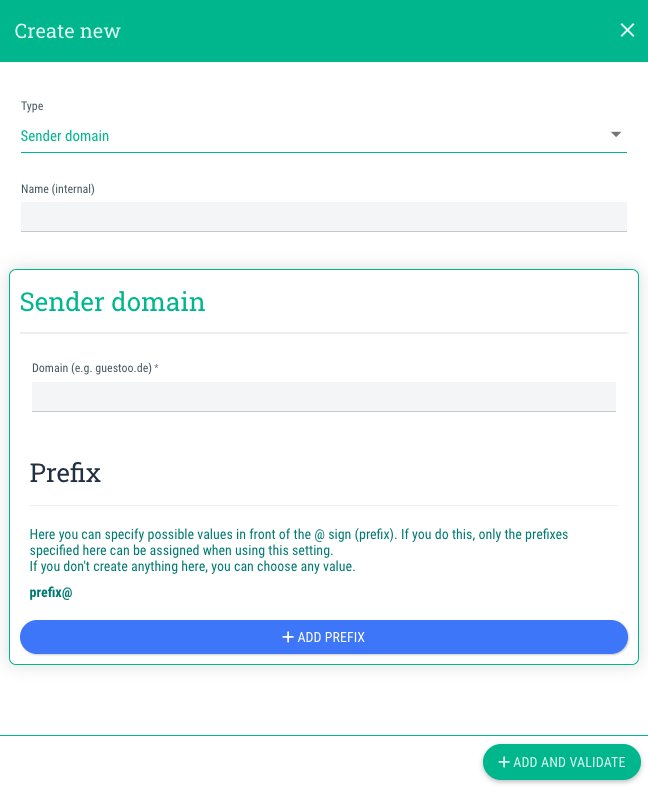
  • Click on the button "+Create new"
  • Type: Sender domain
  • Name (internal):
    Here you can enter a name for the domain that only you and other users in your agency can see. 
  • Domain:
    Enter the domain you want to use here, e.g., yourname.de (without https://www or similar).
  • Prefix:
    Here you can specify which prefixes (= the part of the email address that comes before the @) should be available for selection.
    Note: This setting is NOT necessary, unless you want to restrict the selection of prefixes for your agency's users. If you add prefixes here, you can only use these as senders for your agency and you will not be able to enter free text!
  • Click on "+Add & Validate"

Option 2: Use your own email server


Alternatively, you can also use your own email server.

In order to do this, you or your IT department/representative must create an SMTP mailbox and store the access data in guestoo.

Settings in guestoo

Once the SMTP account has been created, you can store the access data with guestoo and activate the domain for use.


This is how:

  • Go to the menu item "Settings"
  • Switch to the tab "Email settings"
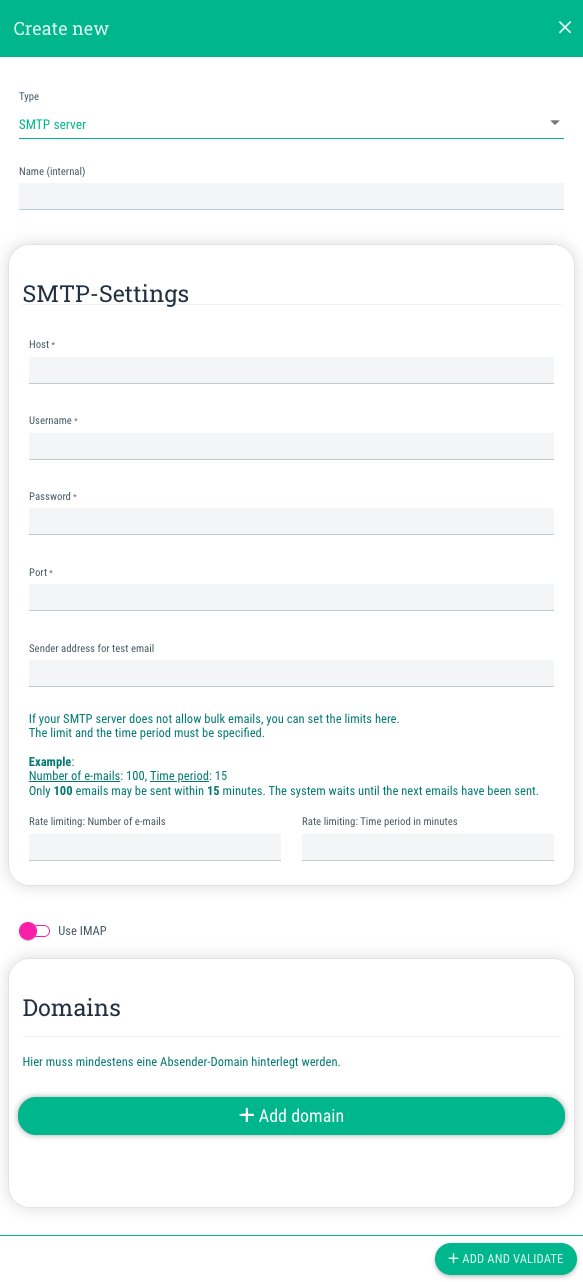
  • Click on the button "+Create new"
  • Type: SMTP server
  • Name (internal):
    Here you can enter a name for the domain that only you and other users in your agency can see. 
  • Host: 
    Here you specify the host of your SMTP server, e.g. smtp.office365.com
  • Username
    Here you enter the username, e. g. name@mydomain.de
  • Password:
    Enter the passwort here
  • Port:
    e. g. 587
  • Sender address for test email:
    Here you enter an email address to which an automated test email will be sent to check whether the SMTP settings are working. You can use your own email address for this, for example.
  • Rate limiting
    If your server has a sending limit to prevent mass emails from being sent, but you plan to send many emails at once, you can set a sending limit here:
    • Rate limiting: Number of emails
      Enter here how many emails may be sent during the period specified below.
    • Rate limiting: Time period in minutes
      Enter the number of minutes during which the above-specified number of emails may be sent.
  • Use IMAP 
    If you activate this option, bounce emails will be evaluated by guestoo, meaning that emails that cannot be delivered will be marked with a corresponding note in the guest list.

    If you want to use IMAP, you must also provide the following access data:
    • Host:
      Here you specify the host of your IMAP server, e. g. imap.office365.com
    • Username:
      Here you enter your username, e. g. name@mydomain.de
    • Password:
      Enter the necessary password here
    • Port:
      e. g. 993
    • Save emails
      If you enable this option, all sent emails will be saved in the sent emails folder.
    • Folder for sent emails
      Here you specify the folder where the sent emails should be stored, e.g. INBOX.Sent (if the folder is called “Sent”).
  • Domains
    Click on "+Add domain" and enter the desired domain, e. g. yourname.de (without https://www. or similar).
    You can specify as many domains as you like in this way.
    You can remove a domain at any time by clicking on the trash can icon next to the domain.
  • Prefix
    Here you can specify which prefixes (= the part of the email address that comes before the @) should be available for selection.
    Note: This setting is NOT necessary unless you want to restrict the selection of prefixes for your agency's users. If you add prefixes here, you can only use these as senders for your agency and you will not be able to enter free text!
  • Click on "+Add and validate"

Set email sender

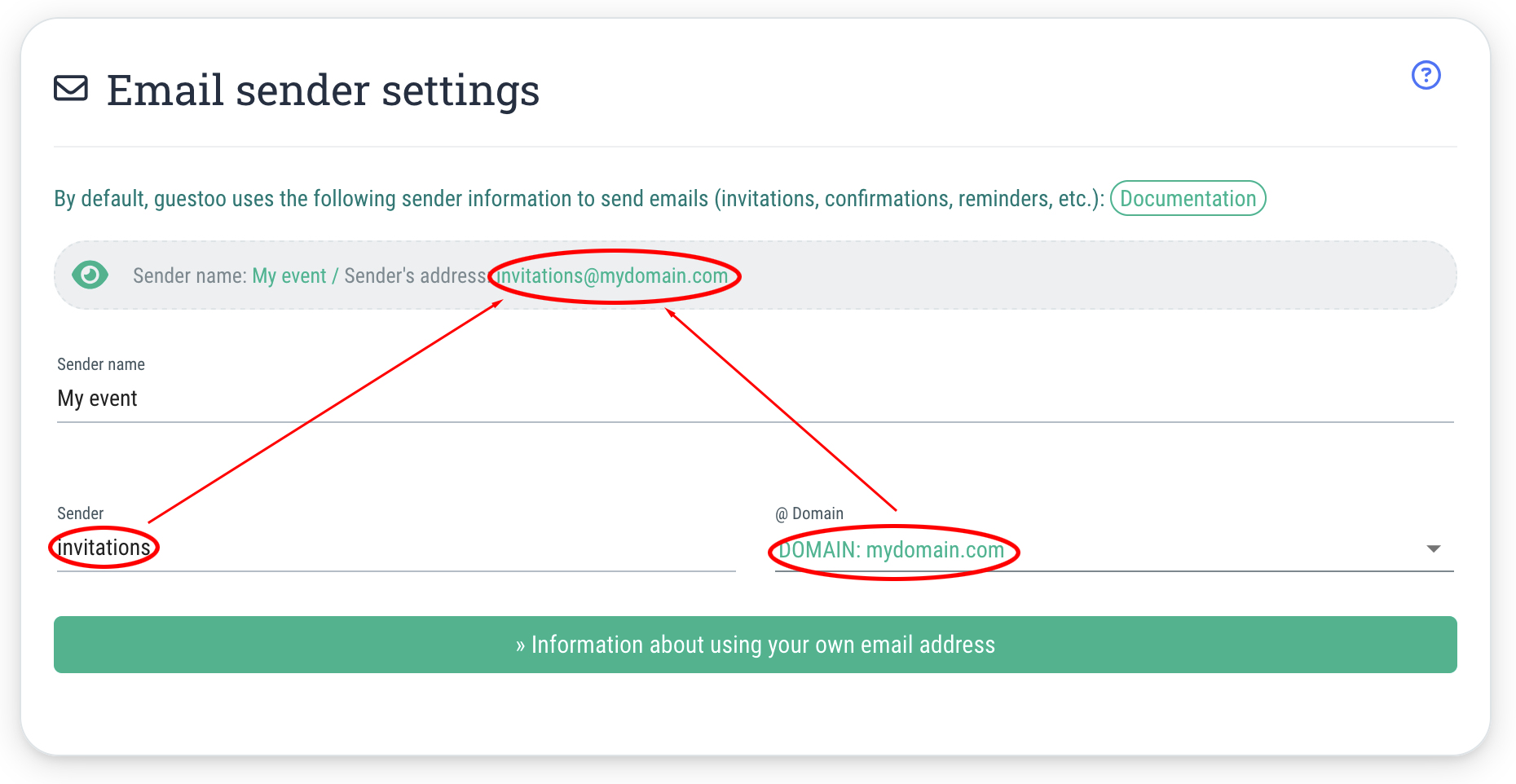
After setting up the email domain using option 1 or 2, you must select it in the settings so that it is used when sending emails.


There are two different options of doing this:

Cross-agency (For all events across your guestoo agency)

If you want the sender settings to be the same for all events within your agency, you can set them in the “Agency” menu item.

You can find out how to do this on this page.

Event-specific

If you want to configure the sender settings for each event, you can do so in the “Emails” tab of the event.

You can find out how to do this on this page.