Confirmation email to the guest

When a guest's participation is confirmed

When you confirm a guest's participation via guestoo (manually or automatically), this email will be sent.

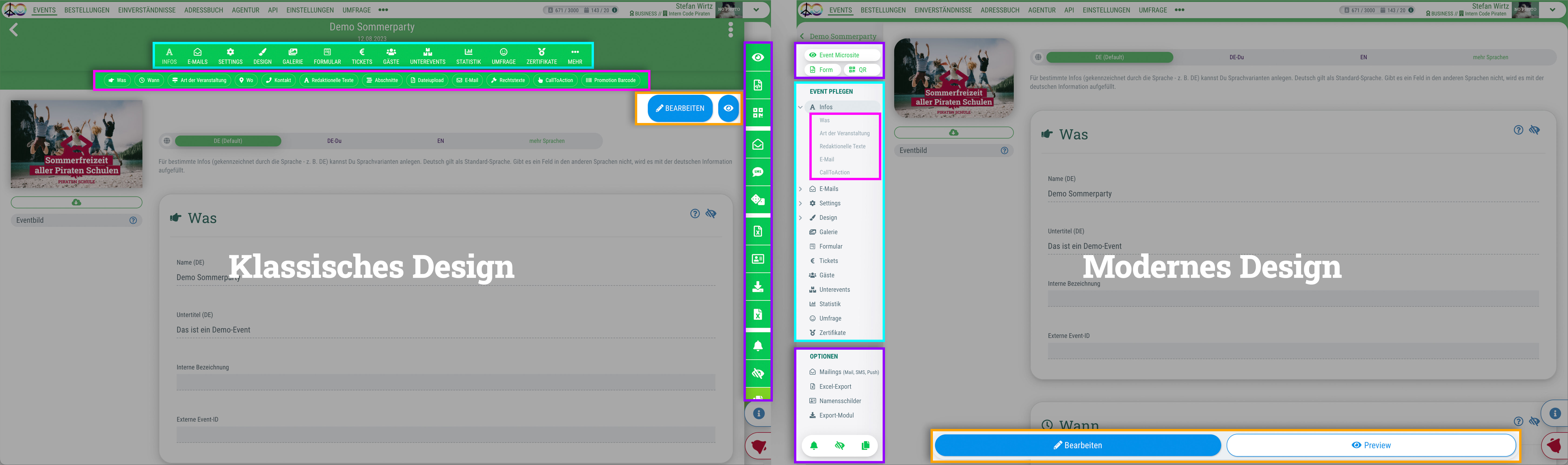
Du kannst für das guestoo Back-End zwischen zwei Darstellungsoptionen wählen. Die Screenshots in der Doku basieren auf dem "Klassischen Design".
Hier siehst Du die Unterschiede, damit Du dich auch im "Modernen Design" zurecht findest: » guestoo Back-End-Design


Inhalte dieser Seite:

When

When will this email be sent to your guests?


This email will be sent when you confirm a guest's participation via guestoo (manually or automatically).

Tip: If you set a guest to “Confirmed” outside of the workflow, you must trigger the confirmation email manually. You can do this via the gear icon to the right of the guest in the guest list.

Content

What the email says and where you can maintain it


The confirmation email contains the following information:

  • Logo
    To be uploaded at the event under Info > Overwrite organizer data or under Agency > Info
    Fallback: guestoo logo
  • Event image
    The image that's been uploaded under Event > Info
    Fallback: Image area is not displayed/empty
  • Header
    “Event name - Participation confirmed”
  • Confirmation text
    Event > E-Mails > Default email texts or under Agency > E-Mails > Default email texts
    Tip: You can also use HTML code in the DOI text
  • Button: Details
    Leads to the event microsite
  • Button: Confirm now
    By clicking on the button, the guest confirms their registration for the event.
    Note: Depending on the setting under Settings > Registration process, the registration still has to be confirmed by the organizer afterwards. 
  • Details
    What, When, Where, Contact details for visitors is pulled from Event > Info or Agency > Info
  • Attachments
    Depending on the settings for the event, the email contains the following things may be attached:
    » Admission ticket + QR code for check-in as an image
    » Apple Wallet ticket (not for purely online events)
    » Calendar entry
    » File attachments added to the event under “Info” and activated for the confirmation email
  • Imprint / Links to data protection & event conditions
    Is pulled froms Event > Info > Legal texts or Agency > Info > Legal texts
  • Link to view, change, and delete guest data
    Automatic

Design

How to customize the appearance of the email


You have the following options for quickly and easily customizing the appearance of the email:

Examples:

Here you can have a look at some examples.

Important: Some email programs may cause significant deviations.

Edit template

This is how you can edit the entire email template


You can edit certain parameters of the email using the options found under “Design” (see above). However, you also have the option of designing the template for your emails entirely yourself in HTML (provided you have booked the appropriate subscription plan/feature).

Under Agency > Email Templates you can find all default emails, their HTML code and the different placeholders that can be used for the template (e. g. Event image, main color etc.). Given the necessary knowledge, you can implement your own designs here.

Warning: If you use your own templates, you will no longer receive email template updates from guestoo, as your own code will be used instead of ours.


Test email

This is how you can test this email


Testing the confirmation email is very easy:

  • Edit the text and design (see above)
  • Follow the steps explained here
  • Register for the event and complete the registration process
  • If the event is set to “Manual confirmation,” go to the guest list and confirm yourself as a guest (on the right via the gear icon) as soon as you have completed the registration
  • You will now receive a confirmation email